7 Deadly PECOS Log In Mistakes That Destroy Your Medicare Enrollment – Ultimate Fix Guide
For any medical practice, durable medical equipment supplier, or home health agency, Medicare enrollment is the gateway to serving a massive patient population and sustaining cash flow. At the heart of that enrollment lies a system you cannot afford to underestimate: PECOS log in. The Provider Enrollment, Chain, and Ownership System (PECOS) is the digital portal through which you submit and manage Medicare enrollment applications, update practice information, and revalidate your billing privileges. Yet a single misstep during a PECOS log in or within the PECOS log in process can stall your application for months, trigger costly denials, or even revoke your Medicare billing rights. At Icon Billing LLC, we’ve witnessed too many practices blindsided by preventable PECOS log in errors—and we’ve helped them recover. This guide reveals seven deadly PECOS log in mistakes, explains exactly how to avoid them, and shows you how a seamless PECOS log in strategy protects your revenue.
Whether you’re a new provider seeking initial enrollment or a seasoned practice facing revalidation, your PECOS log in is the first critical step. A flawless PECOS log in ensures you can submit the correct forms, track your application, and upload supporting documentation without interruption. But the PECOS log in process can be confusing, especially with CMS security requirements, identity verification through ID.me, and the need to associate your PECOS log in with the correct NPI and tax identification. The consequences of a mishandled PECOS log in aren’t theoretical—they hit your bank account directly. Denied claims, lapsed billing privileges, and laborious appeals all trace back to problems that start at the PECOS log in screen. Icon Billing LLC’s enrollment specialists live inside PECOS daily, and we’ve distilled the most devastating PECOS log in pitfalls into this action-oriented guide.
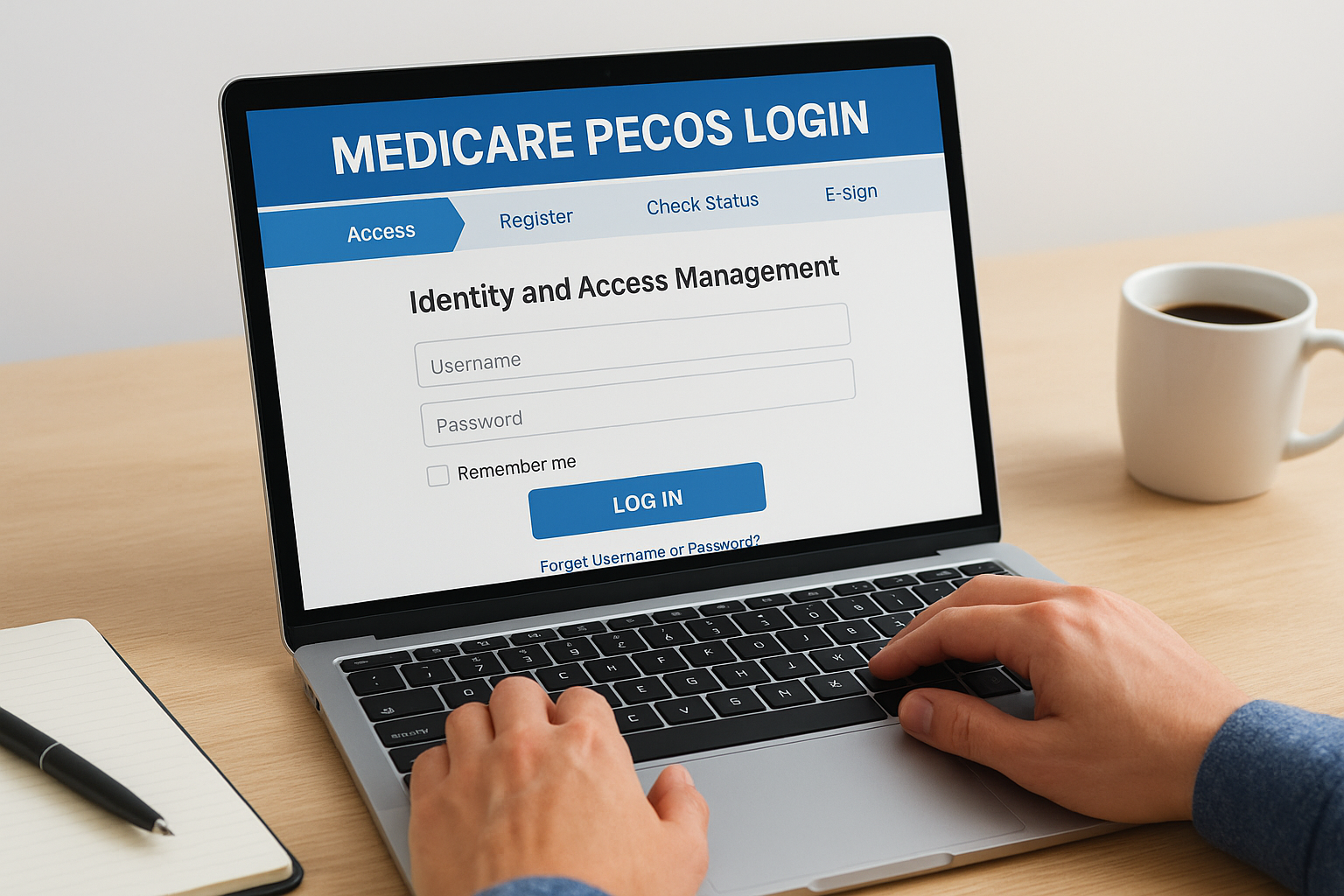
Why a Proper PECOS Log In Matters So Much
Your PECOS log in is the key that unlocks the Medicare enrollment ecosystem. Through a secure PECOS log in, you can:
-
Submit initial Medicare enrollment applications (CMS-855 forms)
-
Revalidate existing enrollments to keep billing active
-
Update practice addresses, ownership changes, and banking details for electronic funds transfer
-
Report adverse legal actions or practice changes
-
Check the status of pending applications
-
Manage reassignment of benefits and supervision arrangements
Every one of those actions is tied to your PECOS log in identity. If your PECOS log in credentials are locked, lost, or not properly set up with the correct user role, you’re locked out of the system entirely. That means you can’t meet revalidation deadlines, can’t add a new provider, and can’t fix a denied application. The result? Medicare stops paying claims tied to your billing number. For many practices, Medicare represents 30–50% of revenue. A PECOS log in failure isn’t just an inconvenience; it’s a direct financial threat. Understanding the PECOS log in process deeply—and knowing the mistakes to avoid—is one of the highest-return investments you can make in your revenue cycle.
Deadly Mistake #1: Using an Outdated or Unsupported Browser for PECOS Log In
It sounds trivial, but a shocking number of PECOS log in failures trace back to browser incompatibility. PECOS is a government system with specific technical requirements. Attempting a PECOS log in using an outdated version of Internet Explorer, a browser with aggressive pop-up blockers, or a mobile device not fully supported can result in endless loading screens, cryptic error messages, and session timeouts. Staff then panic, click “back,” refresh repeatedly, and sometimes lock the account by exceeding the allowed number of failed PECOS log in attempts.
Before your next PECOS log in, verify that you are using a CMS-compatible browser—typically recent versions of Chrome, Edge, or Firefox with JavaScript enabled and pop-ups allowed for the cms.gov domain. Clear your cache and cookies periodically, because a corrupted cache can derail a PECOS log in even on a supported browser. At Icon Billing LLC, we preconfigure our enrollment workstations to avoid these technical hurdles, ensuring every PECOS log in session starts cleanly. Don’t let a browser issue be the reason your revalidation deadline passes while you’re stuck on a spinning PECOS log in screen.
Deadly Mistake #2: Mishandling the ID.me Identity Verification
In response to rising cybersecurity threats, CMS now requires users to verify their identity through ID.me before completing a PECOS log in. This multi-factor authentication process involves uploading identity documents and a facial recognition scan. A common PECOS log in horror story: a provider or office manager attempts the ID.me setup, uses a personal email instead of a professional one, or fails to properly link the verified identity to the correct PECOS log in account. The result is a fragmented identity profile that blocks the PECOS log in entirely.
To succeed with your PECOS log in, create an ID.me account using an email that matches your CMS-registered contact information. Follow the verification steps meticulously, and do not attempt a second PECOS log in identity if the first one stalls—contact ID.me support or let an expert intervene. Icon Billing LLC guides practices through the ID.me and PECOS log in pairing, ensuring your verified identity unlocks the right PECOS profile the first time. Without a clean identity link, your PECOS log in will fail, and you’ll be unable to manage any enrollment tasks.
Deadly Mistake #3: Confusing Individual and Organizational PECOS Log In Roles
PECOS has multiple user roles: Individual Authorized Official, Access Manager, and ordinary user. A deadly mistake occurs when the person performing the PECOS log in does not have the correct role to approve applications, sign attestations, or submit changes. For example, an office manager may have a PECOS log in that allows them to start an application, but only the Authorized Official can sign and submit. If that manager attempts a PECOS log in and sees a “Submit” button grayed out, panic ensues, and the revalidation sits in limbo.
Understand exactly which role your PECOS log in holds. The Authorized Official is a person with the legal authority to bind the organization—typically an owner, partner, or corporate officer. That person’s PECOS log in is required for final submission. If the Authorized Official doesn’t have their own PECOS log in set up yet, don’t wait until the deadline. Icon Billing LLC helps practices map out who needs a PECOS log in, at what permission level, and we coordinate the entire setup so that when it’s time to sign, the right PECOS log in is ready and functioning.
Deadly Mistake #4: Ignoring or Deleting PECOS Log In Correspondence
CMS communicates critical enrollment and revalidation deadlines through your PECOS dashboard and via email linked to the PECOS log in account. A deadly pattern we see: a staff member performs a PECOS log in, sees a notification about an upcoming revalidation due date, assumes someone else will handle it, and logs out. The email notification from that PECOS log in alert gets buried in a cluttered inbox. Six months later, Medicare billing stops abruptly, and the practice discovers their enrollment was deactivated because nobody acted after that PECOS log in notification.
Every PECOS log-in session should include a systematic review of your message inbox, application status dashboard, and any pending development letters. Set up a protocol: after each PECOS log-in, document the status, note any deadlines, and assign a responsible person with a calendar entry. Better still, let Icon Billing LLC manage your PECOS log-in dashboard for you. We perform regular PECOS log-in checkups, track all deadlines, and respond to correspondence immediately. Your PECOS log-in should be a source of clarity, not a forgotten chore.
Deadly Mistake #5: Failing to Keep PECOS Log In Information Secure
The PECOS log-in credentials—username, password, and ID.me account—hold the keys to your Medicare enrollment. When a staff member with the PECOS log-in leaves the practice, and you don’t update the credentials or revoke their access, you create a massive security and compliance risk. A disgruntled former employee could perform a malicious PECOS log-in and alter your banking information or submit false changes. Even without bad intent, orphaned PECOS log-in accounts mean no one remaining in the practice knows how to perform a PECOS log-in when it’s urgently needed.
Centralize control of your PECOS log-in credentials. Use a secure password manager, document recovery options, and associate the PECOS log-in with a generic practice email that multiple authorized personnel can access. When anyone with PECOS log-in knowledge departs, immediately change the password and revalidate ID.me settings. At Icon Billing LLC, we act as a stable, secure custodian of your enrollment processes. While you retain ultimate legal authority, our team’s disciplined PECOS log-in management ensures continuity no matter what personnel changes you face.
Deadly Mistake #6: Entering Inconsistent Information After PECOS Log In
Once you’ve completed a successful PECOS log-in, the data you enter must match what’s on file with the IRS, NPPES, and your state licensing board. A mismatch between the Legal Business Name in PECOS and the name on your tax ID letter will cause a rejection. A Social Security Number or Date of Birth error for an individual provider triggers an immediate hold. Every piece of information you input after your PECOS log-in must be triple-checked against the original source documents.
Too many practices rush through the application after a PECOS log-in, copying information from memory rather than verifying against the legal entity documents. The rejection letter that comes weeks later forces a do-over—and in the meantime, Medicare claims pile up unpaid. Icon Billing LLC’s specialists treat every post-PECOS log-in data entry session as an audit. We cross-reference your NPPES record, IRS CP575 notice, state license, and malpractice insurance certificate before anything is submitted through the PECOS log-in portal. This meticulousness eliminates the most common reason for enrollment delays: inconsistent data entered after a PECOS log-in.
Deadly Mistake #7: Underestimating Revalidation Timelines
Medicare requires periodic revalidation of enrollment information—typically every five years, or more frequently if CMS requests it. The revalidation notice arrives in your dashboard after a PECOS log-in, and you have a hard deadline to submit the revalidation application. The deadly mistake is underestimating how long it takes to prepare the required documents and assuming you can complete everything in a single PECOS log-in session just before the deadline. Revalidation often requires updated licenses, proof of insurance, and recent financial documentation. If your PECOS log-in reveals a revalidation request due in 30 days, start gathering documents immediately.
When a revalidation is missed, Medicare deactivates your billing privileges, and you must go through a full reactivation process—a nightmare that can take months. Avoid this by treating every PECOS log-in as an opportunity to check revalidation status, even if you haven’t received an explicit email. Icon Billing LLC maintains a calendar of revalidation dates for all our clients. We perform a preemptive PECOS log-in review several months before the due date, prepare the revalidation package, and submit it early. With us, a PECOS log-in is never a last-minute scramble.
A Step-by-Step Guide to a Flawless PECOS Log In
Now that the mistakes are clear, let’s walk through the correct PECOS log-in protocol.
-
Prepare Your Environment: Use a supported browser, disable pop-up blockers for cms.gov, and ensure a stable internet connection. This simple step prevents 90% of PECOS log-in technical failures.
-
Complete ID.me Verification: Before your PECOS log-in, set up or update your ID.me account with a professional email. Link it to the correct NPI and organization identity. Test your PECOS log-in after ID.me setup to confirm access.
-
Use the Correct User Role: Ensure that the individual performing the PECOS log-in has the appropriate role. For submissions, the Authorized Official’s PECOS log-in is mandatory.
-
Gather All Documents Before Logging In: Have your IRS letter, NPI confirmation, state licenses, and banking details on hand before initiating the PECOS log-in. You can upload PDFs directly in the session.
-
Log In and Navigate to the Right Module: After a successful PECOS log-in, select the correct enrollment type (Initial, Revalidation, Change of Information). Read the on-screen instructions.
-
Complete the Application Methodically: Enter each field exactly as it appears on legal documents. Use the “Save” function often during a long PECOS log-in session to prevent data loss.
-
Upload Supporting Documents in Accepted Formats: Attach clear, unaltered PDF scans. A PECOS log-in upload with blurry documents will be rejected.
-
Review and Submit with Signature: The Authorized Official performs a final PECOS log-in to sign and submit. Print or save the confirmation screen showing the tracking number.
Following this PECOS log-in protocol transforms a stressful experience into a manageable, predictable process. Icon Billing LLC executes this exact sequence for every client enrollment, ensuring a clean PECOS log-in and a successful submission every time.
How Icon Billing LLC Rescues Your PECOS Log In and Enrollment
Our enrollment specialists are more than just form-fillers; we’re your strategic partners in maintaining uninterrupted Medicare revenue. We start by auditing your current PECOS log-in status for all providers and locations. We identify expired revalidations, pending applications, and role mismatches. Then we create a comprehensive PECOS log-in management plan that includes:
-
Establishing and verifying the PECOS log-in credentials for all Authorized Officials and Access Managers.
-
Handling ID.me verification so your PECOS log-in is always accessible.
-
Monitoring your PECOS log-in dashboard weekly for new correspondence, development requests, or revalidation triggers.
-
Preparing and uploading documents through PECOS log-in with a quality-check process that eliminates data inconsistencies.
-
Tracking application progress and performing a follow-up PECOS log-in to ensure timely approvals.
-
Updating your enrollment when you add a new provider, change a practice location, or modify ownership—all through a secure PECOS log-in session.
When you delegate PECOS log-in management to Icon Billing LLC, you free your staff from the anxiety of navigating a complex federal system. Your internal team can focus on patient care while we ensure your Medicare billing privileges never lapse. Your PECOS log-in becomes our daily responsibility, not your weekend panic.
Real Scenarios: When a Botched PECOS Log In Cost Practices Thousands
Consider a cardiology group that ignored a revalidation notice buried in the dashboard after a casual PECOS log-in check. Sixty days later, Medicare suspended their billing. They lost $200,000 in unpayable claims before Icon Billing LLC reactivated their enrollment through an emergency PECOS log-in and manual intervention. Another solo practitioner attempted a PECOS log-in to add a new office location but incorrectly selected “Change of Ownership” instead of “Change of Information,” triggering a deactivation of the original enrollment. Fixing that error required weeks of phone calls, a corrected PECOS log-in submission, and a gap in Medicare revenue that directly impacted the provider’s livelihood.
In both cases, proper PECOS log-in hygiene and expert oversight would have prevented the crisis. These aren’t rare anomalies; they’re the predictable result of treating PECOS log-in as a simple password entry rather than a high-stakes portal to a heavily regulated enrollment process. Icon Billing LLC exists to make sure you never become one of these cautionary tales.
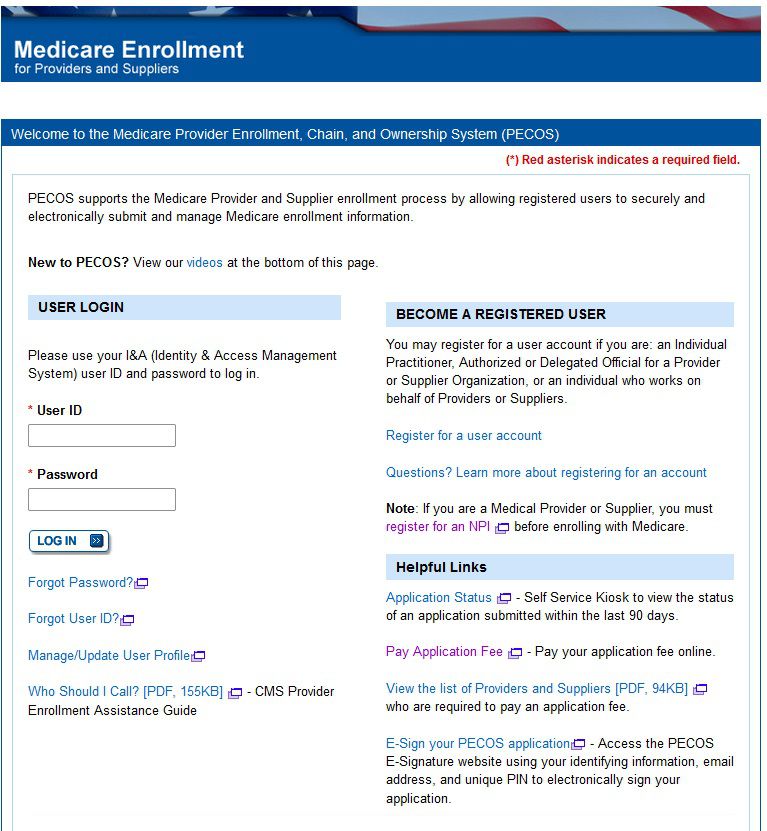
Protecting Your PECOS Log In in an Era of Increasing Cybersecurity Threats
CMS continuously tightens security around PECOS log-in to protect provider data. Multifactor authentication, periodic password resets, and device recognition are now standard. While these measures are essential, they also increase the chances of a lockout. A failed PECOS log-in attempt from an unrecognized device can trigger a temporary freeze. To stay ahead, register only trusted devices for your PECOS log-in, keep recovery contact information current, and never share a PECOS log-in session over unsecured remote access. If you work with a billing partner like Icon Billing LLC, ensure they access PECOS through compliant, secure channels. Our remote PECOS log-in processes use encrypted connections and role-based access that CMS accepts, so your enrollment work moves forward without triggering security flags.
FAQs About PECOS Log In
Q: Can I share my PECOS log-in with my billing staff?
A: Individual PECOS log-in accounts should not be shared. CMS expects each user to have their own PECOS log-in with permissions set appropriately. Sharing credentials violates security policies and can cause authentication errors. Icon Billing LLC helps set up separate PECOS log-in accounts for each authorized user.
Q: What do I do if I’m locked out of my PECOS log-in?
A: Use the “Forgot Password” link on the PECOS log-in page or contact CMS External User Services for assistance. If the lockout is due to ID.me issues, you must resolve them with ID.me support. Icon Billing LLC can step in to troubleshoot your PECOS log-in lockout and coordinate the recovery.
Q: How often should I perform a PECOS log-in to check my enrollment status?
A: At a minimum, perform a PECOS log-in monthly to review messages and dashboard status. During active revalidation or a pending application, weekly PECOS log-in checks are recommended. Our service includes continuous monitoring, so you don’t have to remember.
The Bottom Line: Your PECOS Log In Is Your Revenue Lifeline
If there’s one message to take away, it’s this: your PECOS log-in is not just a portal password; it is the gatekeeper of your Medicare revenue. Every PECOS log-in session has the potential to protect or jeopardize your billing privileges. The seven deadly mistakes—browser issues, ID.me mismanagement, role confusion, ignored notifications, insecure access, data inconsistencies, and missed revalidation deadlines—are all avoidable with knowledge, discipline, and expert support.
Icon Billing LLC has built a reputation on safeguarding provider enrollments and maximizing reimbursements. We’ve turned countless PECOS log-in horror stories into success stories. Now, we invite you to take control of your enrollment before a crisis hits. Contact us today for a complimentary enrollment audit. We’ll perform a secure PECOS log-in on your behalf, assess your current status, identify any lurking deadlines, and propose a streamlined management plan. With Icon Billing LLC as your partner, your PECOS log-in becomes a symbol of security, not a source of fear. Don’t let a deadly PECOS log-in mistake destroy the Medicare revenue you’ve worked so hard to earn. Let’s lock in your billing future, one flawless PECOS log-in at a time.